









One command gives agents a controlled Markdown-to-PDF path.
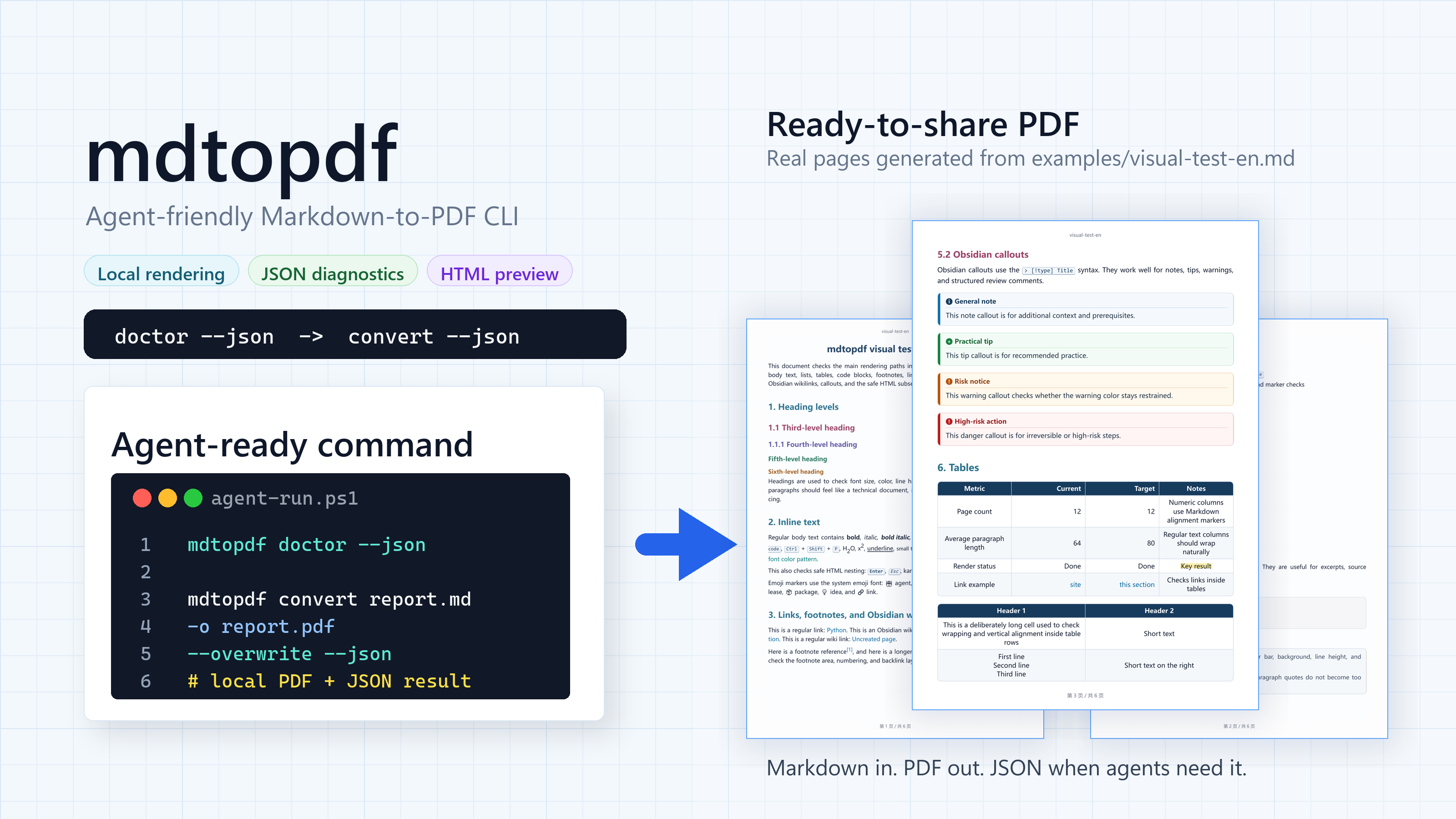
Agents are good at writing Markdown. The problem is the handoff: PDFs exported
through ad hoc paths rarely share the same style. mdtopdf gives the user a
command-line interface where the style can be defined up front.
- Agent-friendly -
mdtopdf --helpis an interface description an agent can read. - JSON when it matters - conversion, HTML preview, environment checks, and theme listing can return machine-readable output.
- Local files in, local files out - an isolated headless browser, no upload step, no remote rendering service.
- More than plain Markdown - Obsidian links, highlights, frontmatter, comments, and callouts are rendered.
Install from PyPI in your Python environment:
python -m pip install "agent-markdown-pdf>=0.3.0"The PyPI distribution is agent-markdown-pdf; it installs the mdtopdf command.
Do not use mdtopdf as the PyPI package name; the distribution name is
intentionally different from the command name.
| Use case | Name |
|---|---|
| Install from PyPI | agent-markdown-pdf |
| Run the CLI | mdtopdf |
| Import in Python | mdtopdf |
Check the machine before the first conversion:
mdtopdf doctor --render-check --jsonThe package installs the Python dependencies, including Playwright. You also need a compatible Chromium browser and the fonts your documents use. An installed Chrome, Edge, or Chromium is discovered automatically; if none is found, follow Browser setup. This check actually renders PDF, math, and diagrams.
Convert a file:
mdtopdf convert report.md -o report.pdf --overwriteTry the bundled visual test document:
git clone https://github.com/ABClize/mdtopdf.git
cd mdtopdf
python -m pip install -e ".[dev]"
python -m playwright install chromium --no-shell
mdtopdf html examples/visual-test-en.md -o visual-test-en.html --overwrite
mdtopdf convert examples/visual-test-en.md -o visual-test-en.pdf --overwrite --json
The same visual test is also available in Chinese at
examples/visual-test-cn.md.
There is no mdtopdf update command. For a pip-installed release, activate the
same virtual environment (or select the same Python interpreter) used to install it:
python -m pip install --upgrade agent-markdown-pdf
python -m mdtopdf --version
This updates from the package index, not from the development branch. For pipx or uv tool installations, use that tool's upgrade workflow instead. For editable/source installs, update the intended checkout and reinstall from it; do not replace a development install with a PyPI release by accident.
Pin a tested version in your deployment requirements rather than upgrading on
every job. After upgrading to 0.3.0 or later, run mdtopdf doctor --render-check --json
and review a representative PDF. If Playwright now needs a different managed
browser, follow Browser setup. Conversion does not check for
updates or upgrade the package/browser automatically.
The bundled agent skill lives at
mdtopdf/skills/SKILL.md.
Use that file when another agent needs a compact runtime guide for mdtopdf.
mdtopdf doctor --json
mdtopdf convert report.md -o report.pdf --overwrite --json
Agents can also send UTF-8 Markdown directly to convert -, without saving an
input file. An explicit output file is required; PDF bytes are not written to stdout.
printf '# Report\n\nGenerated by an agent.\n' | mdtopdf convert - -o report.pdf --jsonPowerShell (set the pipe encoding for non-ASCII text, especially in Windows PowerShell 5.1):
$OutputEncoding = [System.Text.UTF8Encoding]::new($false)
'# Report' | mdtopdf convert - -o report.pdf --json
Relative resources resolve from the working directory unless --base-url is set.
Use --resource-dir for bare attachment names and --title for the document title
and default header (otherwise stdin). JSON reports input: "-" and source: "stdin".
Empty or non-UTF-8 input fails; --overwrite and --strict behave as with files.
The html command still takes a file path.
Use HTML preview when layout needs a quick look:
mdtopdf html report.md -o report.html --overwrite --json
mdtopdf convert report.md -o report.pdf --overwrite --json
convert --json returns the input path, output path, file size, theme, font
check summary, warnings, and render method. If conversion fails in JSON mode,
the error is structured enough for an agent to show the command, explain the
likely cause, and retry after a fix.
A successful conversion can still have warnings: a missing image, an unavailable
font, or an unsupported formula shown as source. Read warnings before handing over the PDF.
For jobs that must not accept these fallbacks:
mdtopdf convert report.md -o report.pdf --overwrite --strict --json
mdtopdf doctor --render-check --json
--strict leaves an existing output untouched when a diagnostic is raised.
It is also available for file-based HTML previews. Math and Mermaid are rendered
to static HTML/SVG in Chromium; plain HTML export does not start a browser and
does not check image loading. doctor --render-check tests PDF, KaTeX, and Mermaid
together. It checks runtime health, not visual parity across machines.
Exit codes are 0 for success, 1 for runtime or strict-check failures, and
2 for invalid arguments. Missing fonts are advisory; a missing browser or
bundled renderer makes the basic doctor check fail.
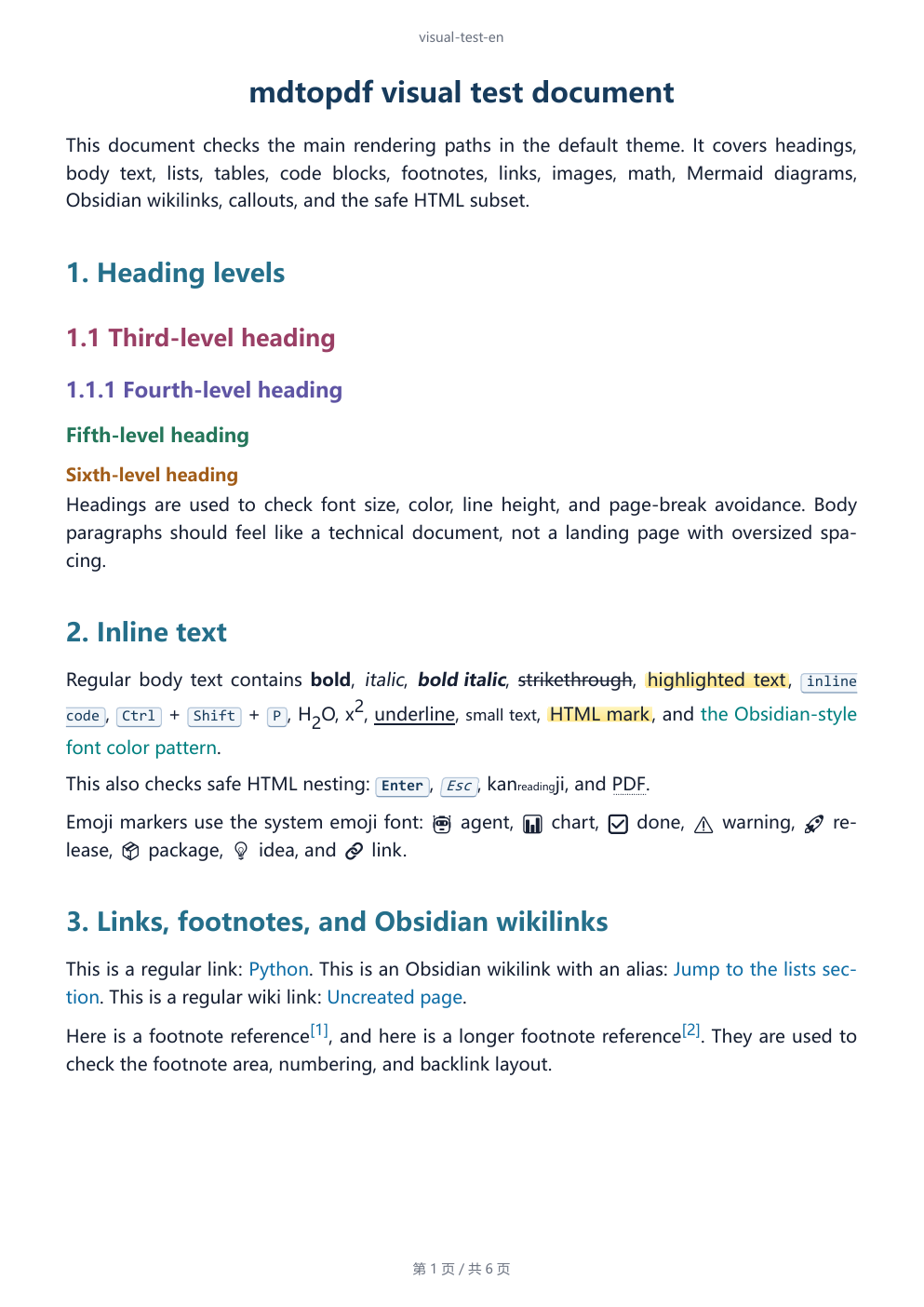
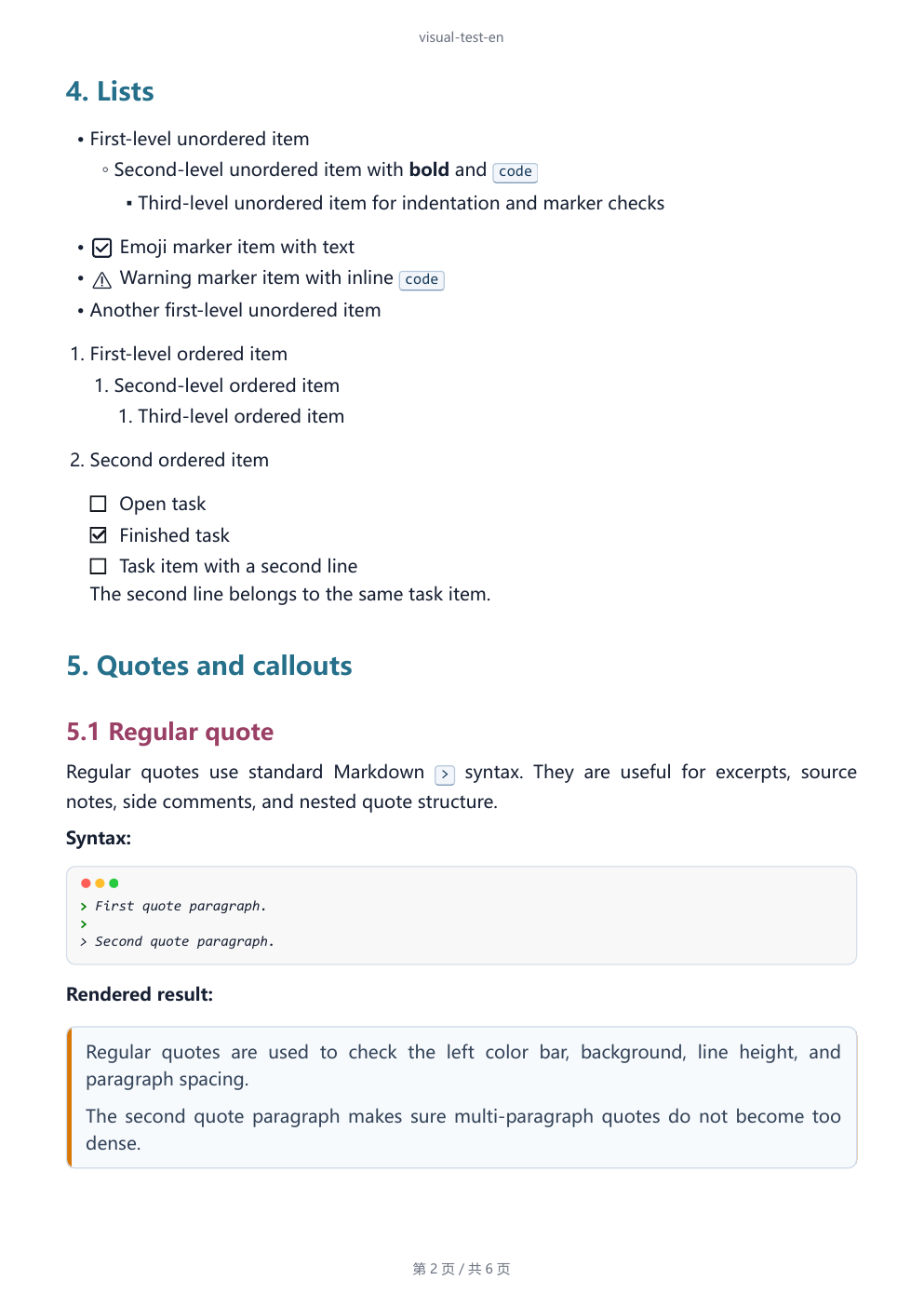
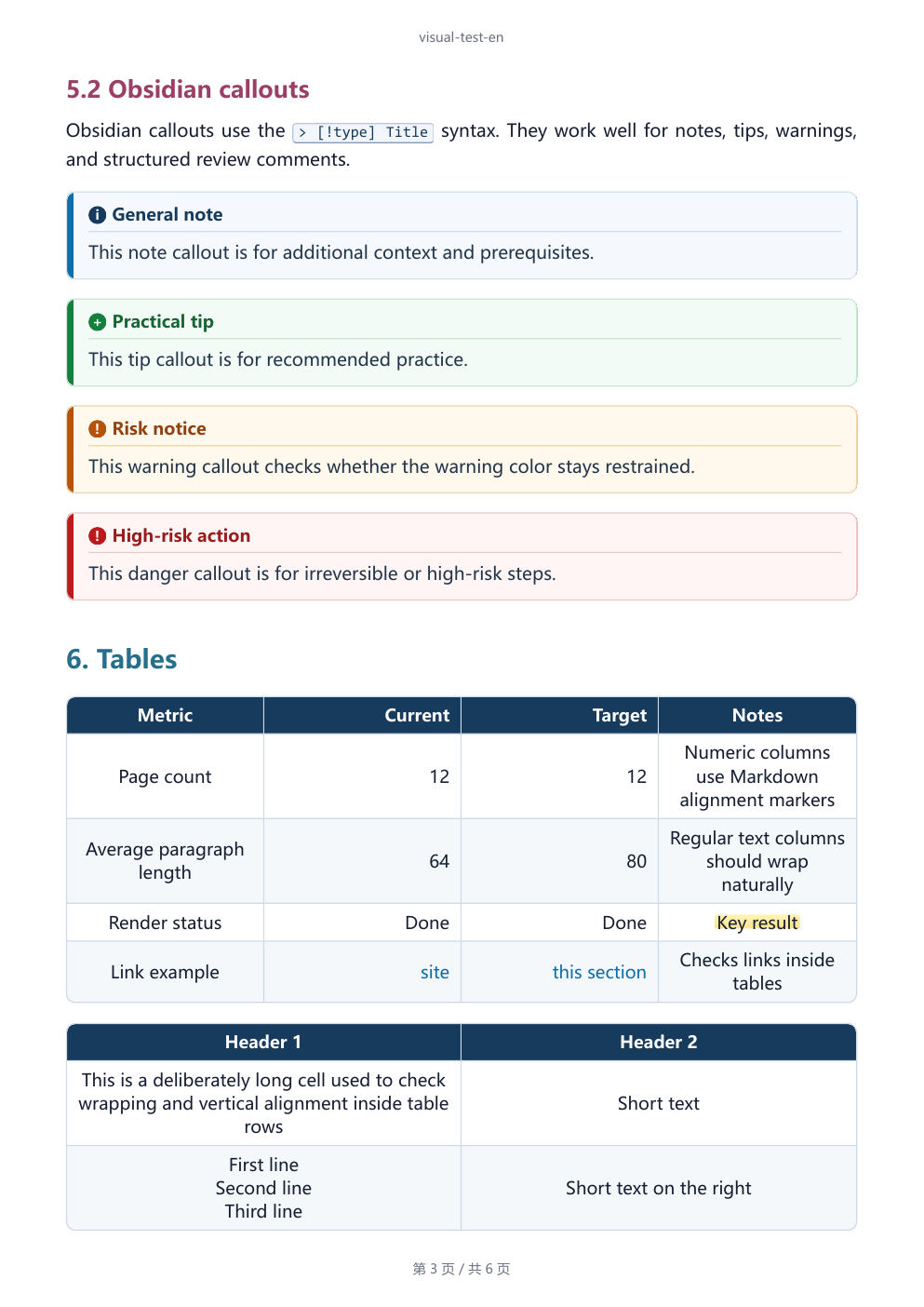
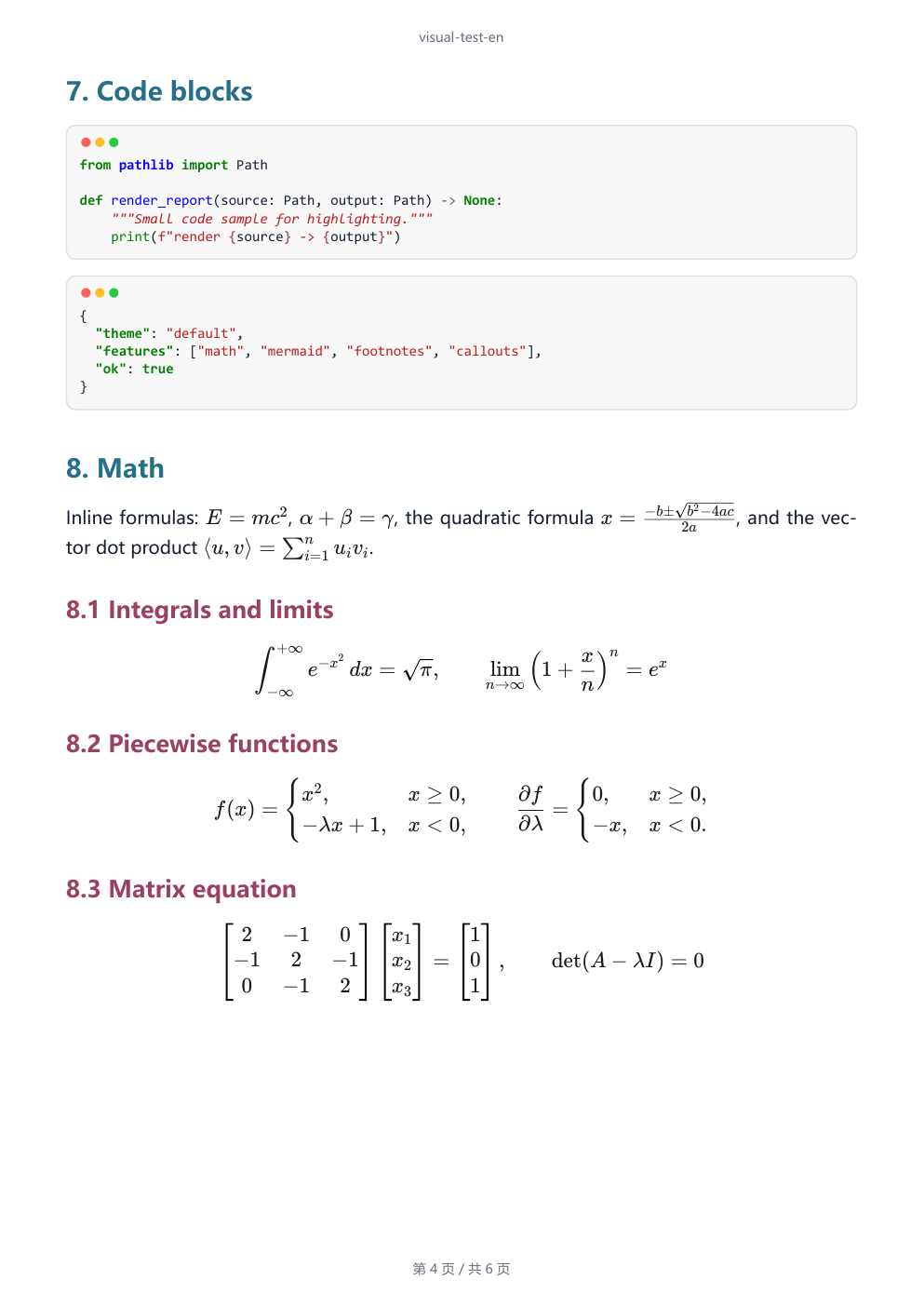
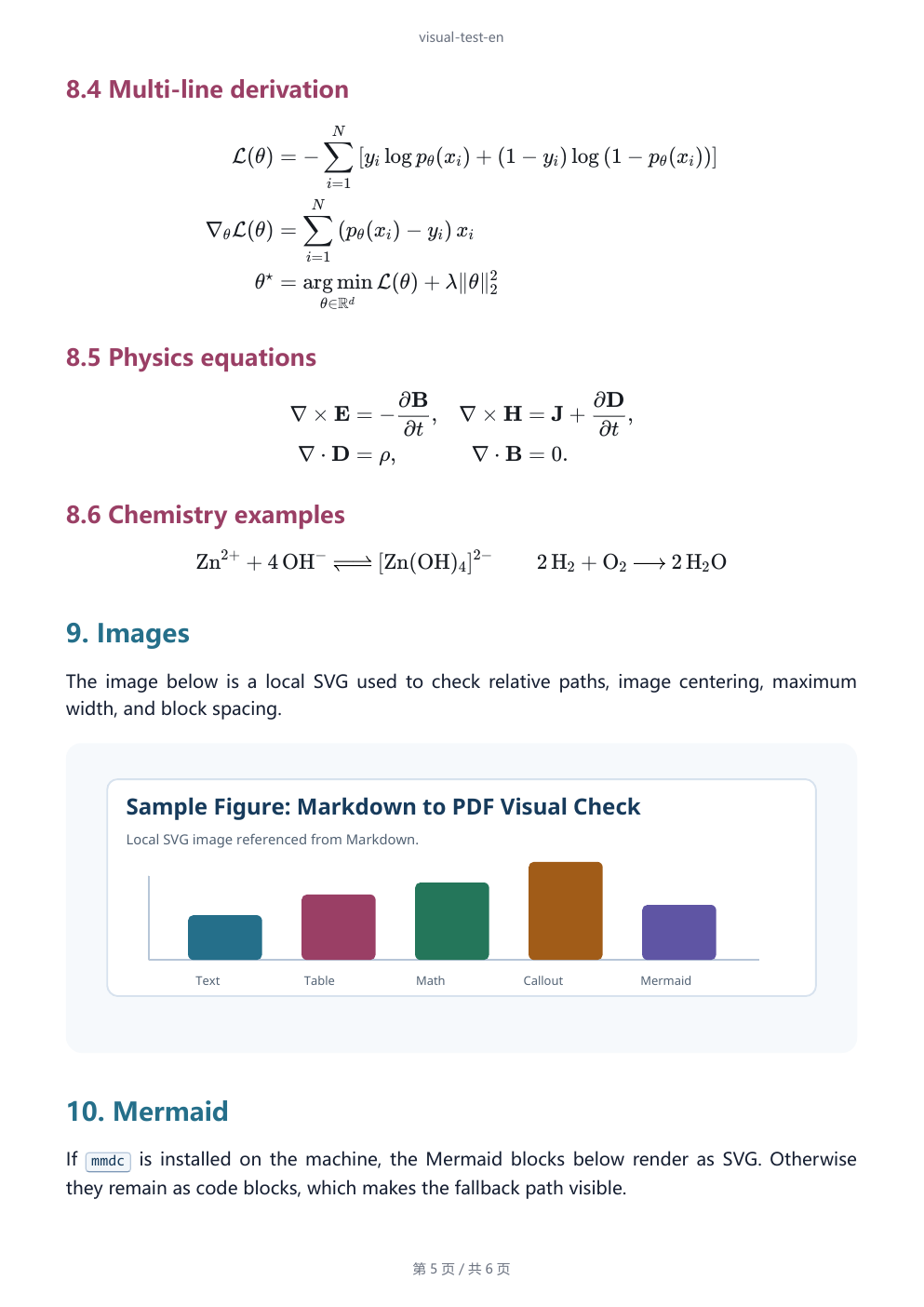
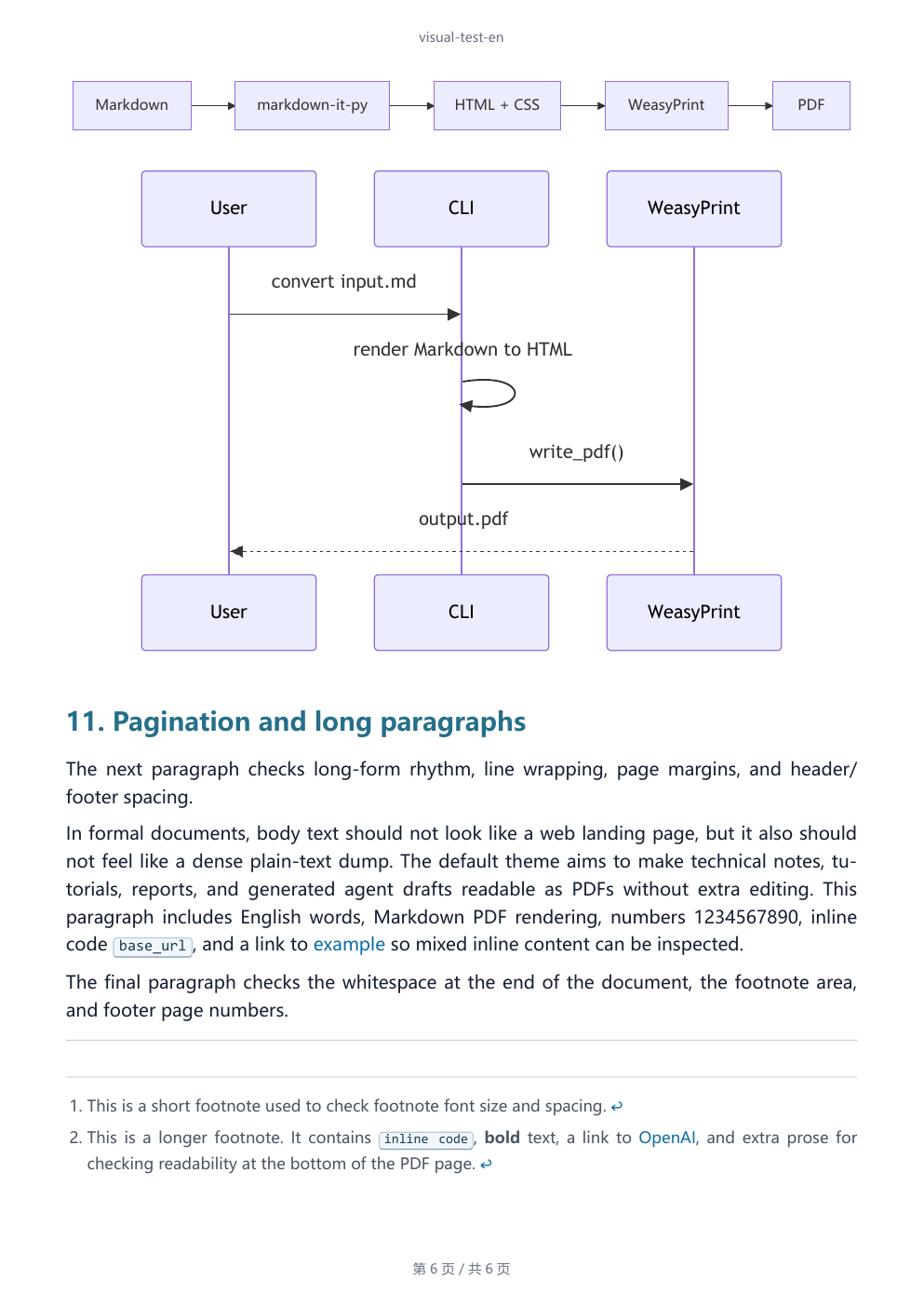
The gallery below is rendered from the final PDF produced by
examples/visual-test-en.md. It shows the actual pages an agent can hand back
to a user: headings, callouts, tables, code, math, images, Mermaid, and
pagination.
| Page 1 | Page 2 |
|---|---|
 |
 |
| Page 3 | Page 4 |
 |
 |
| Page 5 | Page 6 |
 |
 |
Markdown -> markdown-it-py HTML -> theme/custom CSS -> Chromium PDF
One Chromium session renders bundled KaTeX and Mermaid, waits for fonts and images, and prints the PDF. No separate Mermaid CLI, Node.js installation, WeasyPrint, or MSYS2 setup is needed. Browser installation is an explicit setup step; conversion never downloads a browser.
The command name and Python API stay the same, but the PDF engine changes from WeasyPrint to Chromium. There is no WeasyPrint fallback. Install/check the browser, then render a representative document before upgrading an automated workflow. Page breaks, headers/footers, fonts, and custom paged-media CSS may differ. JSON consumers should accept the new render-method value rather than hard-code the old backend. See the release notes.
| Feature | Notes |
|---|---|
| JSON output | --json is available for conversion, HTML preview, doctor, and theme listing. |
| Environment checks | doctor --json checks Python imports, the browser executable, bundled KaTeX/Mermaid assets, and recommended fonts. |
| Local rendering | Markdown, CSS, math, Mermaid SVG generation, and PDF export stay on the machine. |
| HTML preview | Generate standalone HTML before PDF export for fast visual inspection. |
| Obsidian compatibility | Wikilinks, aliases, frontmatter hiding, comments, highlights, and typed callouts. |
| Document Markdown | Tables, task lists, footnotes, heading anchors, fenced code, and Pygments highlighting. |
| KaTeX math | Inline and block TeX render with bundled KaTeX assets, without a CDN. |
| Safe HTML default | Common inline document tags are allowed; unsafe raw HTML stays escaped unless opted in. |
| Python API | Convert Markdown strings or files from your own code. |
Render a PDF:
mdtopdf convert report.md -o report.pdf
mdtopdf convert report.md -o report.pdf --overwrite
Preview HTML:
mdtopdf html report.md -o report.html --overwriteSet document metadata and page chrome:
mdtopdf convert report.md -o report.pdf --title "Report"
mdtopdf convert report.md -o report.pdf --header "Report" --footer "Draft"
mdtopdf convert report.md -o report.pdf --no-header --no-footer
Use extra CSS or resource lookup paths:
mdtopdf convert report.md -o report.pdf --css print.css
mdtopdf convert report.md -o report.pdf --base-url assets
mdtopdf convert report.md -o report.pdf --resource-dir attachments
Custom CSS is the style extension point. Put document-specific rules in a CSS
file; fonts, spacing, colors, page rules, and code block styling all live there.
Use a system-installed font directly, or define @font-face for a local font
file. Relative URLs in CSS are resolved from the Markdown file's base URL, so
use --base-url when those assets live next to your document:
@font-face {
  font-family: "Report Sans";
  src: url("fonts/NotoSansSC-Regular.otf");
}

:root {
  font-family: "Report Sans", "Noto Sans SC", "Source Han Sans SC", sans-serif;
}

code,
pre {
  font-family: "Cascadia Code", "Liberation Mono", monospace;
}
Then pass the CSS file:
mdtopdf convert report.md -o report.pdf --css print.css --base-url .During export, mdtopdf checks the final CSS font stacks. Missing fonts do not
stop PDF generation, but they are reported in CLI warnings and in the JSON
warnings field.
Custom CSS also warns when its first named font is missing, even if a fallback
is available. Local @font-face files are checked for readability and CJK
coverage; declaring a family is not enough. Remote font sources are not fetched
by this static check and are reported as unverified. These checks do not replace
reviewing the rendered PDF. Pass --strict to reject warnings.
Return JSON:
mdtopdf --json convert report.md -o report.pdf --overwrite
mdtopdf doctor --json
mdtopdf themes list --json
Allow raw HTML only for trusted local Markdown:
mdtopdf convert trusted.md -o trusted.pdf --unsafe-htmlHTML filtering is not a filesystem or network sandbox. Images and CSS can still reference local files or remote URLs. Run untrusted documents in an environment with restricted filesystem access and networking.
from mdtopdf import (
    markdown_file_to_html,
    markdown_file_to_pdf,
    markdown_to_html,
    markdown_to_pdf,
)

rendered = markdown_to_html("# Report\n\n==highlight==")
print(rendered.html)

markdown_to_pdf("# Report\n\nBody", "report.pdf", title="Report", overwrite=True)
markdown_file_to_html("report.md", output_path="report.html", overwrite=True)
markdown_file_to_pdf("report.md", output_path="report.pdf", overwrite=True)mdtopdf supports:
- CommonMark
- Tables
- Strikethrough
- Task lists
- Footnotes
- Heading anchors
- Fenced code blocks with Pygments highlighting
- Obsidian-style
==highlight==marks - Obsidian-style
[[target|alias]]wikilinks - Obsidian-style
%%comment%%comments outside code - Obsidian/YAML frontmatter hiding at the start of the file
- Obsidian-style callouts such as
> [!note] Title - Safe inline HTML tags such as
<br>,<kbd>,<mark>,<sup>, and<sub> - TeX math through
$inline$,$$block$$, and commonamsmathenvironments - Mermaid diagrams through bundled Mermaid in Chromium
Raw HTML is disabled by default except for the safe subset above. For trusted
local Markdown, pass --unsafe-html.
PDF export requires Chromium. HTML export also uses it when the document has
math or Mermaid. Browser selection is deterministic: MDTOPDF_BROWSER_EXECUTABLE,
then legacy PUPPETEER_EXECUTABLE_PATH, then installed Playwright Chromium,
then Chrome/Edge/Chromium on PATH or in common Windows/macOS installation folders.
Linux also checks standard installation paths. An invalid explicit path is an error,
not a reason to silently switch browsers. Discovery never downloads or installs anything.
If no browser is available, install the managed browser once:
python -m playwright install chromium --no-shell
mdtopdf doctor --render-check --json
doctor --json shows the selected path and its tools.browser.source.
Use --render-check to verify it actually launches and renders. A browser found
on disk can still lack required system libraries or sandbox support.
An existing recent Chrome or Edge can be selected explicitly:
$env:MDTOPDF_BROWSER_EXECUTABLE = "C:\Program Files (x86)\Microsoft\Edge\Application\msedge.exe"
mdtopdf doctor --render-check --json
export MDTOPDF_BROWSER_EXECUTABLE="$(command -v google-chrome)"
mdtopdf doctor --render-check --jsonThe legacy PUPPETEER_EXECUTABLE_PATH is accepted if the new variable is unset.
A fresh headless session is used; your personal browser profile is never opened.
Browser errors include an error_code, original message, and repair hint.
Use Python 3.10+ and a recent Chromium browser. The Python Playwright package includes its driver; a separate Node.js or npm installation is not required. Windows and macOS no longer need an MSYS2 or Homebrew Pango setup.
On a supported Debian/Ubuntu environment, install Chromium's system libraries during setup, then provide the fonts your documents use:
python -m playwright install-deps chromium
sudo apt-get update
sudo apt-get install -y --no-install-recommends \
  fontconfig fonts-liberation fonts-dejavu-core fonts-noto-cjk fonts-stix
fc-cache -f
Run conversions as a non-root user with working browser sandbox support. If Ubuntu/AppArmor blocks a downloaded browser, use an explicitly configured system Chrome permitted by the host policy. Do not fix this by disabling the sandbox. See Playwright browser setup.
The theme keeps Latin fonts before CJK fonts. Linux uses Liberation Sans /
DejaVu Sans for English and digits, Noto Sans CJK SC for Chinese, and Cascadia
Mono / Cascadia Code for code where installed (otherwise system monospace).
Debian provides Cascadia through fonts-cascadia-code. Windows keeps its
existing system font stack. Microsoft YaHei and Segoe UI Emoji are not Linux
requirements and are never downloaded or bundled by mdtopdf.
Emoji still use installed system fonts. The existing Linux preference is monochrome Noto Emoji, with Noto Color Emoji as a fallback. Browser rendering removes the old WeasyPrint pipeline, but does not make every font or emoji sequence identical across operating systems. Review representative PDFs. KaTeX includes its own math fonts; STIX is an optional math fallback.
Images, CSS, and fonts may use local or remote resources. Document JavaScript
is blocked during conversion, even with --unsafe-html; this is not a
filesystem or network sandbox. Use restricted filesystem/network permissions
for untrusted documents. Raw HTML exported with --unsafe-html remains trusted
content when opened elsewhere.
git clone https://github.com/ABClize/mdtopdf.git
cd mdtopdf
python -m pip install -e ".[dev]"
python -m playwright install chromium --no-shell
python -m pytest tests/ -q
Build and check the package:
python -m build
python -m twine check dist/*MIT. Bundled KaTeX and Mermaid assets include their MIT licenses at
mdtopdf/vendor/katex/LICENSE and mdtopdf/vendor/mermaid/LICENSE.
mdtopdf does not bundle CJK body fonts, emoji fonts, or proprietary system
fonts. The default theme references local system fonts such as Segoe UI,
Microsoft YaHei, PingFang SC, Segoe UI Emoji, Noto Sans CJK SC,
Noto Emoji, Noto Color Emoji, Cascadia Code, and Consolas, but those font files come from
the user's operating system or runtime environment. Public Linux images should
prefer the open-font baseline above.